Free Kick chat overlay for OBS
To show Kick chat on stream, add a Browser source in OBS with a chat overlay link. In Layrs: sign in with Kick, pick a chat style and copy one link. The background is transparent, your channel’s 7TV emotes show, and it’s free.
Updated
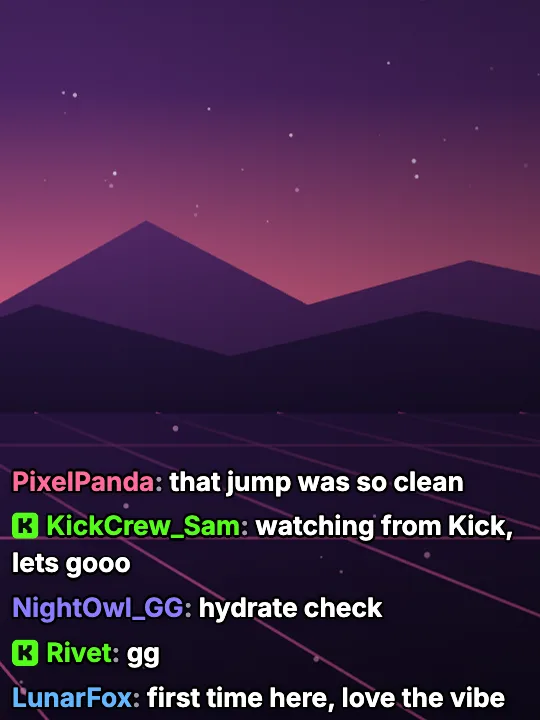
Add Kick chat to OBS
Sign in with Kick
Sign in to Layrs with Kick. Already in with Twitch? Click your name at the bottom left, pick Settings and click Connect Kick under Connected platforms.
Pick a chat
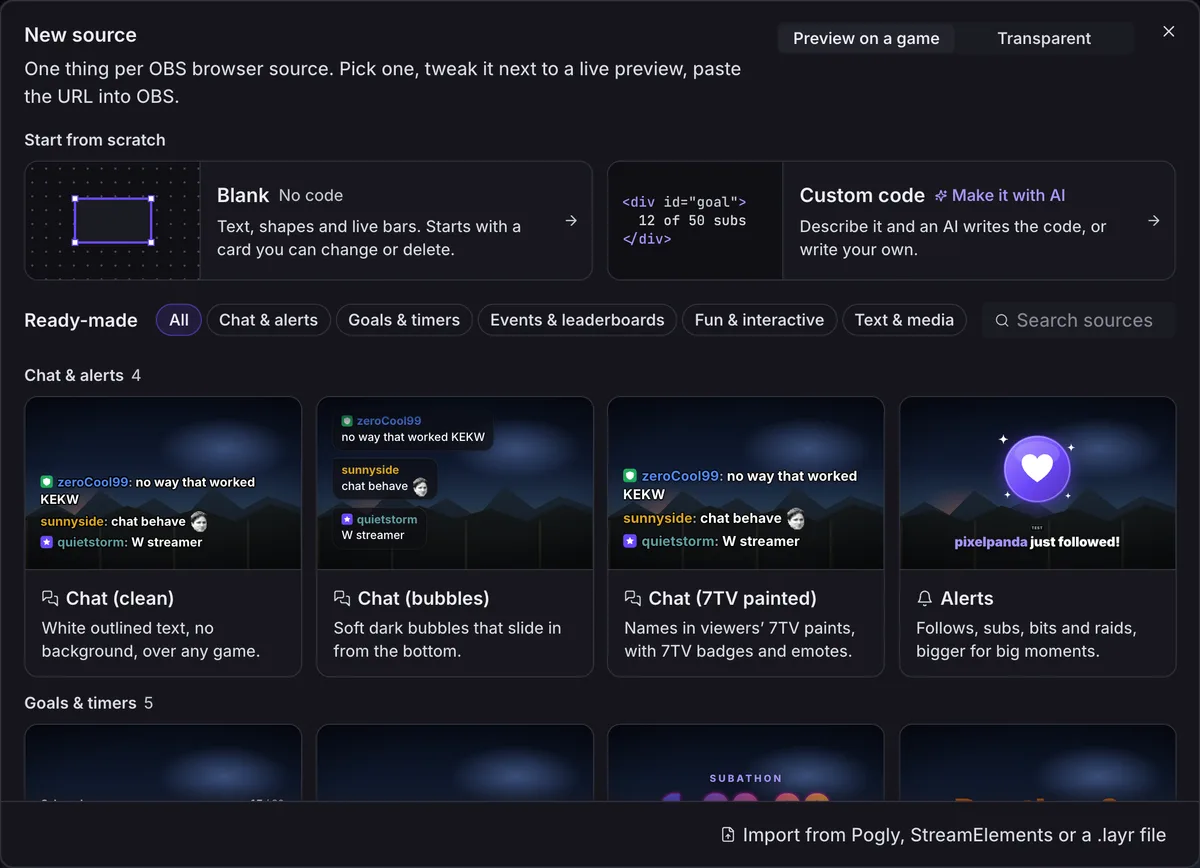
Click New → Source (on a new account: One source on Home) and pick Chat (clean) or Chat (bubbles).
Copy the link
In the strip under the preview, click Copy URL.

Add it to OBS
In OBS, click + under Sources, pick Browser, paste the link into URL and set Width and Height to what Layrs shows (450 and 700 for a new chat).
Nobody chatting yet? Click Test above the preview and, under As Kick sends them, pick Chat. A sample Kick message shows in the preview and in OBS. Step by step with pictures of OBS: how to add chat to OBS.
Why sign in? Kick’s official API sends a channel’s chat to an app only after the streamer allows it, so Layrs needs your Kick sign-in. Twitch chat is public to read, so the free Twitch chat overlay needs no account.
What the overlay shows
- Emotes: Kick’s own emotes, your channel’s 7TV emotes and 7TV’s global ones. BTTV and FFZ emotes are for Twitch chat.
- Not on Kick: 7TV name paints, 7TV badges and personal emotes are Twitch only.
- Less clutter: Hide bots and Hide !commands are on from the start (Advanced, then Filters).
- Moderation: a ban or a timeout takes that person’s messages off the overlay. Kick tells apps about bans, not about one deleted message, so a single message a mod deletes stays until it scrolls away.
- Your look: a transparent background, and every part can change: font, size, colors, how many messages stay.
Changes show in OBS as you make them, with no new link. Your mods can edit the chat with you: let your mods edit your overlay.
Read Kick chat in a dock (only you see it)
Open Docks → Custom Browser Docks
It’s in OBS’s menu bar. On OBS 29 and older: View → Docks → Custom Browser Docks.
Paste your pop-out chat
Name it Kick chat and paste
https://kick.com/popout/yourname/chat, with your Kick name in place of yourname. Then Apply.
This is Kick’s own way. A dock is part of the OBS window, not your stream, so viewers never see it. Kick’s guide says you can’t log in to Kick inside the dock, so you read chat there and type from your browser, and that its cookie banner can’t be fully removed.
Other ways to show Kick chat
| What | Layrs | Kick’s pop-out chat | Social Stream Ninja | KickBot |
|---|---|---|---|---|
| What it is | A hosted chat overlay: one link for a Browser source | Kick’s own chat page, which its help center adds to OBS as a dock | A free, open-source tool that gathers chat from many sites | A Kick bot with chat widgets |
| Viewers see it | Yes | Kick’s guide makes a dock, which only you see | Yes, as a Browser source | Its widget list has chat widgets; how they go into OBS is not stated there |
| What has to keep running | Nothing on your computer but OBS | Nothing but OBS | Its browser extension or desktop app, with the chat pages it reads kept open | Nothing to install |
| 7TV emotes in Kick chat | Yes: your channel’s and the global ones | Not stated | Not stated | Not stated |
| Twitch chat in the same box | Yes | No, Kick chat only | Yes, it is made for many platforms at once | Not stated: its pages are about Kick |
| Account | Sign in with Kick | None to read chat | Not stated | An account, with your Kick account linked |
| Price | Free | Free | Free and open source; some optional add-ons need paid services | Free to use |
Sources: Kick’s help center, Social Stream Ninja and its README, KickBot and its widgets. Want chat from YouTube or TikTok in the same box? Social Stream Ninja covers them; Layrs is Twitch and Kick only.
Twitch and Kick chat in one overlay
Link both accounts and one chat overlay shows both chats. Kick names get a small green K so you can tell them apart. Twitch’s Terms don’t allow merging another platform’s chat into your Twitch stream while you simulcast, though. What the rule says and what to switch off.
FAQ
How do I add Kick chat to OBS?
Sign in to Layrs with Kick, make a chat source, copy its link and add it to OBS as a Browser source. To read chat without showing it, add Kick’s pop-out chat as a Custom Browser Dock.
Is the Kick chat overlay free?
Yes. Every built-in Layrs overlay is free, with no watermark.
Does it show 7TV emotes in Kick chat?
Yes: your channel’s 7TV emotes and 7TV’s global ones, next to Kick’s own. 7TV name paints, badges and personal emotes are Twitch only.
Is the background transparent?
Yes. In OBS only the messages show, with your game or camera behind them.
Can I show Twitch and Kick chat together?
Yes, once you link both. While you simulcast, check Twitch’s rule on merging other platforms first.
Why does it need a sign-in when the Twitch one doesn’t?
Twitch chat is public to read. Kick’s official API sends chat to an app only after the streamer signs in and allows it, and that is what Layrs uses.