How to make a Twitch overlay for free
Watch the 3-minute video or follow the steps under it. You start from a ready scene with chat, alerts and a sub goal, make it yours, and add it to OBS as one Browser source. It’s free and runs in your browser: nothing to download.
Updated
The video loads from YouTube only when you press play.
Start from the starter scene
Sign in with Twitch
Go to layrs.tv and click Start free with Twitch. Signing in is read-only: Layrs can’t post in your chat or change your channel.
Add the starter scene
On your home page, click Add the starter scene. It comes with chat, alerts and a sub goal, already laid out.
Open it in the editor
Click the scene. The canvas is your stream, 1920 × 1080. The chat and the alert on it are samples, so you can design without being live.
Make it yours
The styles you start with are only a starting point. Everything on the canvas can be moved, recolored and rewritten.
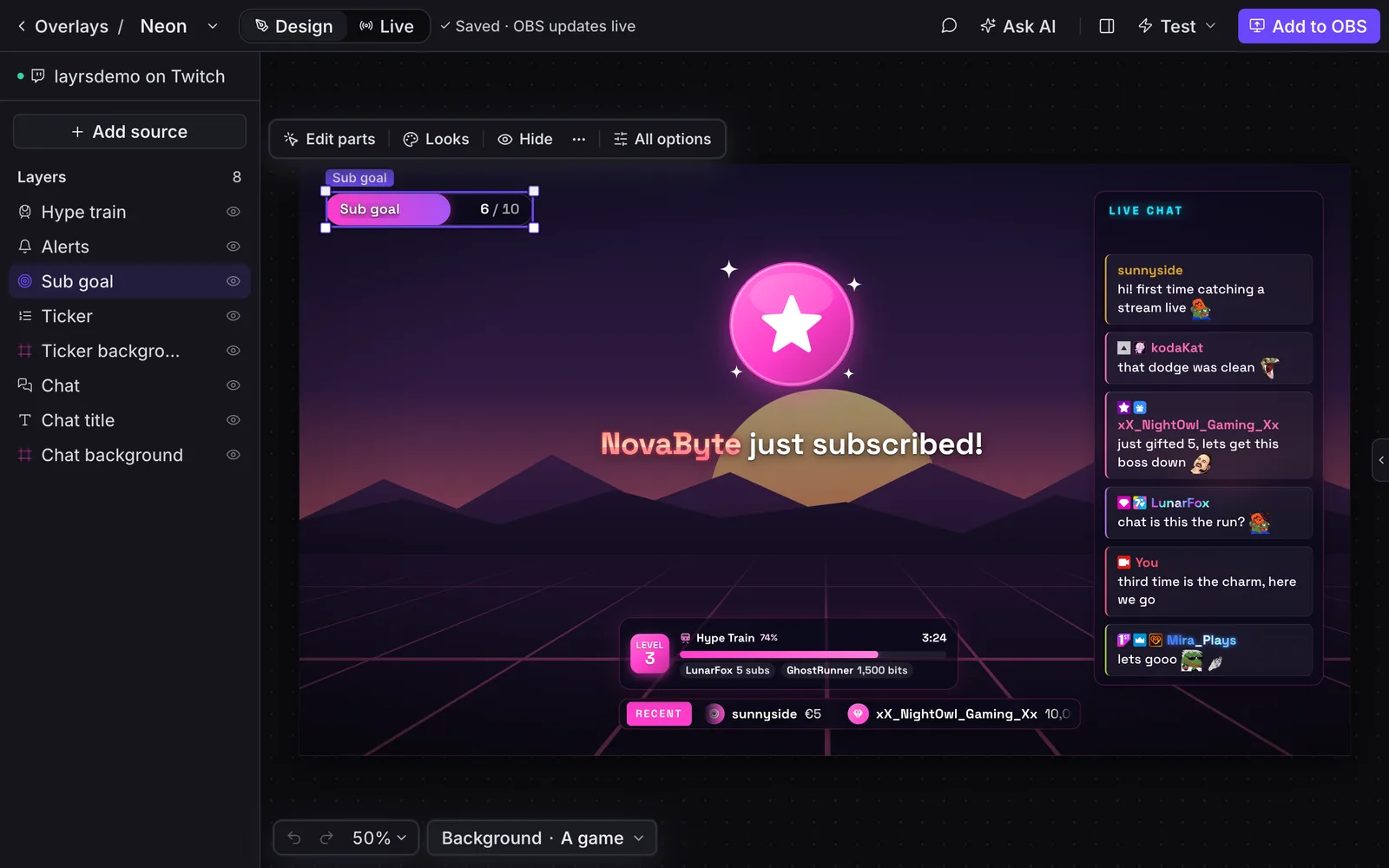
- Switch the look: click the alert, then Looks. Looks are finished styles, one click each. Remix picks a random one.
- Move things: drag the chat to the other side of the canvas, and it snaps into place.
- Change one part: double-click the alert, click the card behind the text and give it another color. Only the card changes, and Undo takes it back.
- Write your own alerts: open All options, then Per event. Every event has its own message, image or GIF, and sound, and the alert changes as you type.
- Go all the way: under Advanced is every option for every part, down to custom CSS.
Test it without touching your goals
Open Test and send a gift sub. Tests look real on stream, but they never count toward your goals or leaderboards.
Add it to OBS
Copy the link
In Layrs, click Add to OBS and Copy URL.
Add a Browser source
In OBS, click + under Sources and pick Browser. Give it a name and click OK.
Paste the link and set the size
Paste the link over the URL that’s there, and set the size to what Layrs shows: 1920 by 1080 for a scene. Then OK.
Lock it
Click the padlock next to the source, so nobody moves it by accident.
Or skip the typing: with OBS on the same computer, drag the button under Add to OBS straight into OBS’s Sources, and Layrs sets the name and size for you.
There’s no save button. Everything saves by itself, and OBS shows each change within a second. More on sizes, sound and fixes: OBS browser source: add one, size it, fix it.
Keep the OBS link secret
The OBS link is a key to your overlay, so never show it on stream. Layrs hides it on screen until you copy it. If it ever leaks, Reset URLs… gives you a new one, and the old one stops working.
FAQ
Is Layrs really free?
Yes. Overlays, alerts, chat and goals are free, with nothing to download. The only fee is 3% on tips paid through Stripe, if you take tips.
What size should a Twitch overlay be in OBS?
A whole scene is 1920 × 1080, the size of a 1080p stream. A single source, like chat or alerts on their own, has its own size: Layrs shows it under Add to OBS.
Can my mods help me build it?
Yes. Invite them to your team and edit the same overlay together, live. How mods help with your overlay.
Do I have to start from the starter scene?
No. You can add chat, alerts or a goal on their own as separate sources, or start from the Blank scene, an empty canvas. The starter scene is just the quickest way to get all three.